
How to Create a Digital Invitation Online in Under 10 Minutes
No design skills, no hassle. Here's how to create a digital invitation and have it ready to share in under 10 minutes.
27 June 20262 min read

You don't need design skills or a free afternoon to make a digital invitation that looks like you hired someone. With the right online invitation maker and a clear process, you can go from blank screen to a ready-to-share invite link faster than you can finish an episode of your favorite show. Here's exactly how to create a digital invitation, step by step.
Step-by-Step Guide to Creating a Digital Invitation
Step 1: Visit the Website and Sign Up Head over to zelebrio.com and create your account. It takes just a few details, and you're in.
Step 2: Choose Your Event Category and Template Pick the category that matches your occasion, such as a wedding invitation, birthday invitation, or anniversary invite, then preview and select the template that fits your vision.
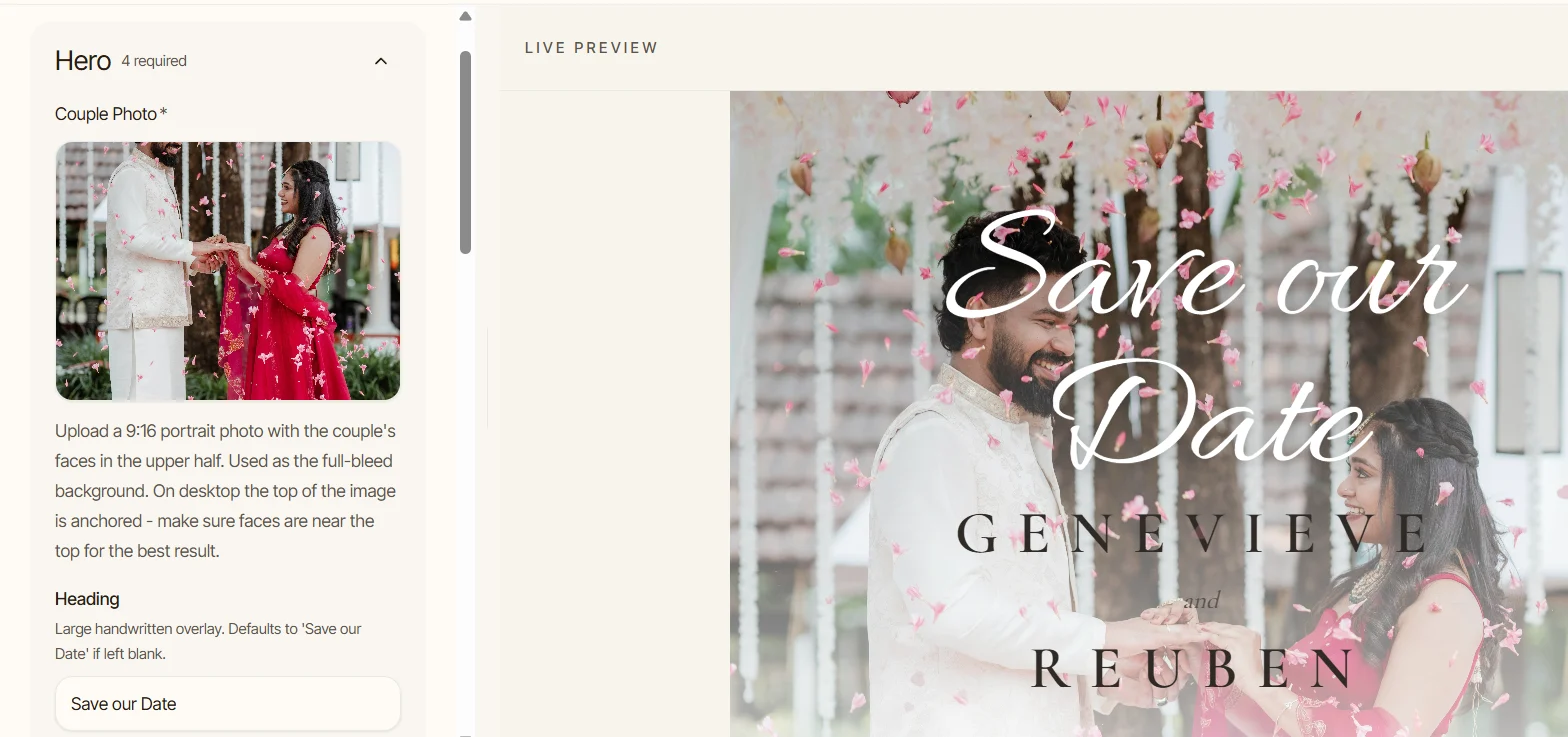
Step 3: Add Your Event Details Fill in the core information that makes the invitation yours:
Heading or title
Names of the people involved
Event date and time
Your invitation message
Venue name and address
Images, if your template includes image sections
This is the heart of your digital invite, so take your time getting these details right.
Step 4: Make Your Customizations Now make it feel personal. Add functional features like a map link, contact number, or countdown timer. Set up your splash screen with a headline and animation style that match the mood of your event. Add music from the built-in library or upload your own track. Want a festive touch? Turn on falling elements like petals, confetti, or hearts, and adjust their style, size, and count.
Step 5: Preview Anytime While customizing, click Preview at the top to see a live version of your invitation exactly as your guests will.
Step 6: Review and Publish Happy with how it looks? Click Continue for one final review, then publish your digital invitation and share the link with your guests.
Frequently asked questions
Do I need any design experience to create a digital invitation?
Not at all. Every template is pre-designed. You just add your own details, images, and preferences.
Can I see how my invitation looks before paying?
Yes. You can preview your digital invitation live at any stage of customization, and again before final publishing.
Can I edit my digital invitation after I've published it?
Yes, edits are allowed for up to 30 days after purchase. After that, the invitation stays as-is.
Is adding music, falling elements, or a countdown compulsory?
No. These are all optional features you can add for extra flair, or skip entirely for a simpler look.
Can I use a custom URL for my online invitation?
Yes, you can personalize your invitation link, even using the names of the people the event is for.
How long does it take to create a digital invitation?
Most users complete the entire process, from choosing a template to publishing, in under 10 minutes.
Ready to create your own digital invitation? Visit zelebrio.com and turn your event into a memory worth keeping.
Written by
Ashika Manohar
Curated by the Zelebrio team to help people choose, customize, and publish polished websites with clarity.

